How to Connect Claude to Your LEGO Collection Data
Claude is a powerful AI assistant that can access comprehensive LEGO data through Model Context Protocol (MCP). This guide shows you how to connect Claude to Brick Directory for instant access to 70,000+ sets, parts information, marketplace pricing, and your personal collection.
What You’ll Be Able to Do
Once connected, Claude can answer questions like:
- “What minifigures come with LEGO set 75192?”
- “Show me all Castle theme sets from the 1990s”
- “What’s the current BrickLink price for set 10030?”
- “Add set 75192 to my Rebrickable collection”
- “What parts do I need to complete set 10030?”
- “Show me alternative builds for this set”
Claude accesses real-time data from Rebrickable, BrickLink, Brickset, BrickEconomy, and BrickOwl once you connect these services.
See It In Action
Watch how Brick Directory works with Claude:
Setup Guide
All you need is Claude - no additional software required!
Step 1: Open Claude Settings
- Go to claude.ai and sign in
- Click Settings (gear icon in bottom left)
- Navigate to Connectors
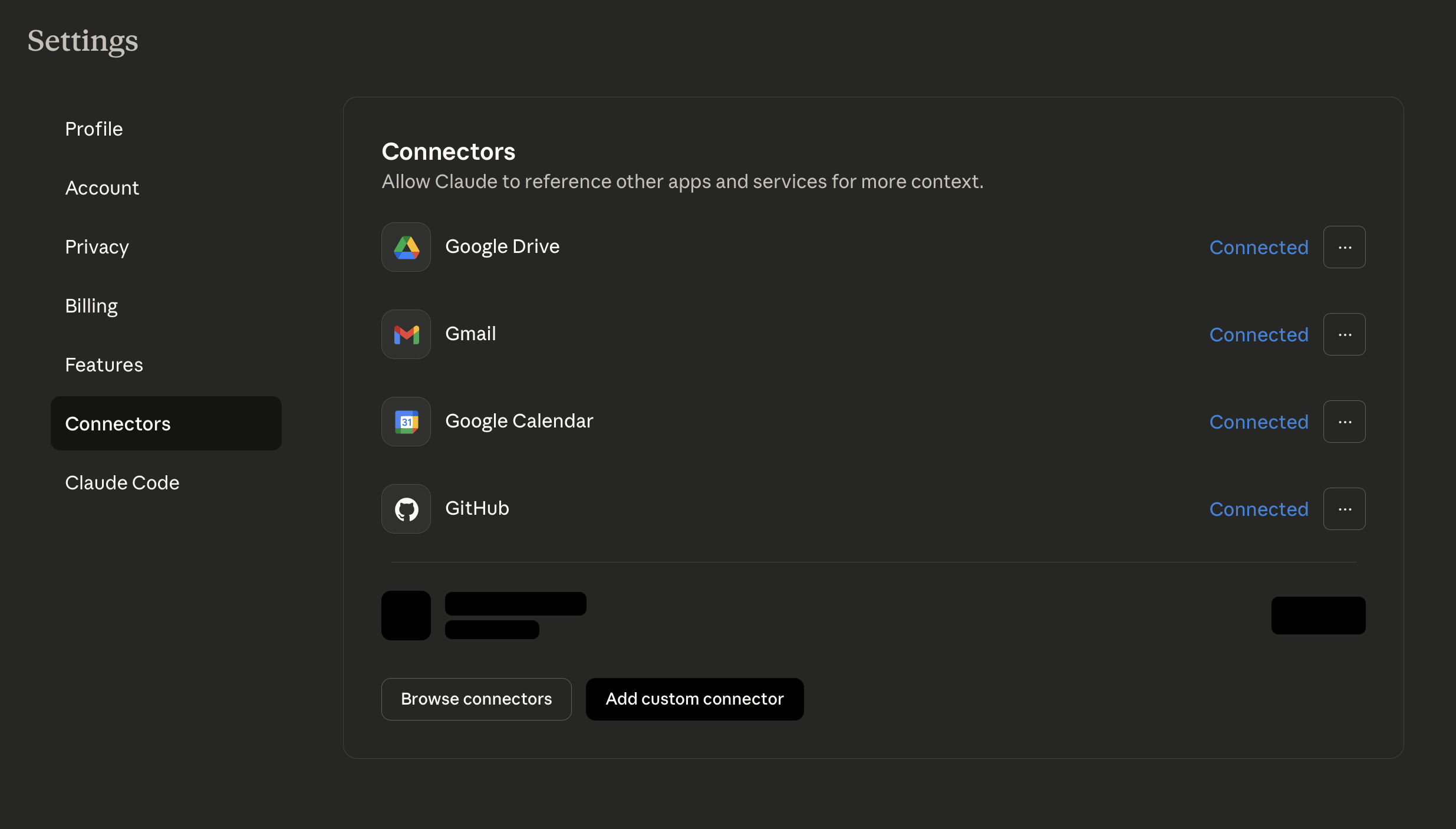
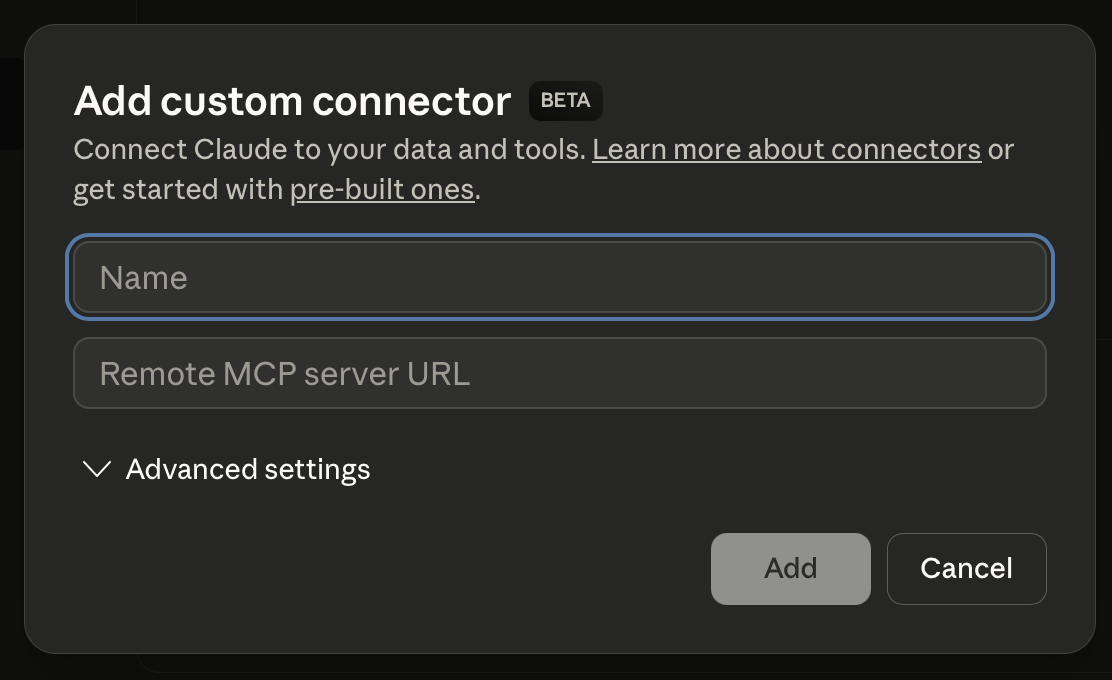
Step 2: Add Custom Connector
Click “Add custom connector” and enter:
- Name:
Brick Directory - Remote MCP server URL:
https://api.brick.directory/connect
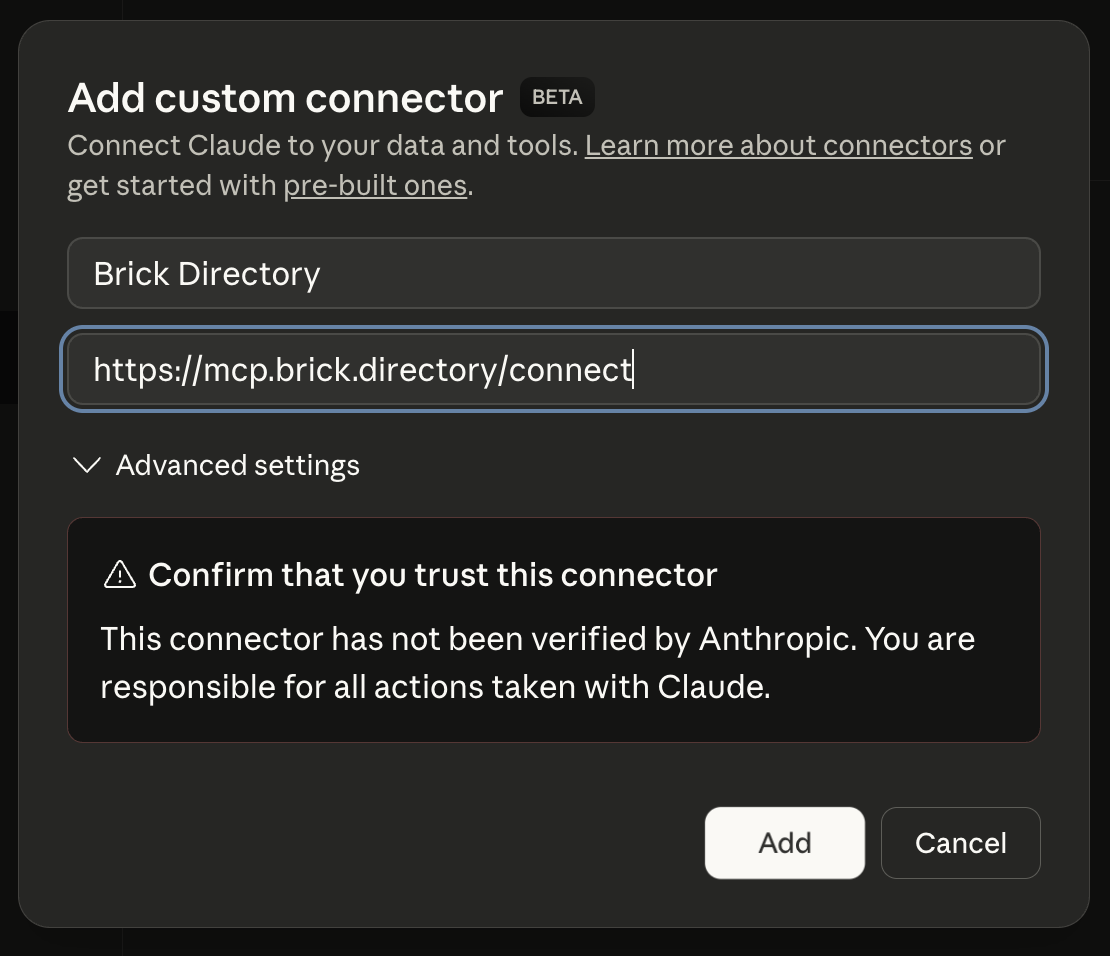
Step 3: Authenticate
The first time you use Brick Directory, you’ll be prompted to authenticate:
- Browser window opens automatically
- Sign in with Google or Facebook
- Authorization completes and you’re connected!
Step 4: Start Using Brick Directory
Ask Claude about LEGO data:
“What minifigures come with LEGO set 75192?”
Claude will use Brick Directory to provide detailed information!
Using Claude Desktop? The setup is similar - just add the connector through your config file:
Click to show Claude Desktop configuration
**Configuration file location:** - macOS/Linux: `~/.config/claude/claude_desktop_config.json` - Windows: `%APPDATA%\Claude\claude_desktop_config.json` **Add this configuration:** ```json { "mcpServers": { "brick-directory": { "command": "npx", "args": ["-y", "@modelcontextprotocol/server-fetch", "https://api.brick.directory/connect"] } } } ``` Restart Claude Desktop. Authentication works the same way (browser opens automatically).Connecting Your Personal Collection
Want Claude to access your personal LEGO collection? Configure your service credentials through the Brick Directory settings:
Step 1: Get Your API Keys
Get free API keys from these services:
- Rebrickable: rebrickable.com/users/api (for collection management)
- BrickLink: bricklink.com/v3/api.page (for pricing data)
- Brickset: brickset.com/tools/webservices/requestkey (for reviews and images)
- BrickEconomy: brickeconomy.com/account/settings (for investment tracking)
- BrickOwl: brickowl.com/apikey (for marketplace management)
Step 2: Configure in Brick Directory
- Go to chat.brick.directory
- Sign in with Google or Facebook
- Click Settings (gear icon)
- Add your API keys for the services you want to use
- Credentials are encrypted with AES-256 and stored securely
Step 3: Use in Claude
Now when you ask Claude questions through MCP, it can access your collection:
“Add set 75192 to my Rebrickable collection”
“Show me all sets in my Rebrickable collection”
“What parts am I missing for set 10030?”
Example Conversations
Here are realistic examples of what you can ask Claude:
Set Information
You: “What minifigures come with the UCS Millennium Falcon?”
Claude: Provides complete minifigure list with images and descriptions from Rebrickable
Collection Management
You: “Add set 10030 to my Rebrickable collection”
Claude: Adds the set to your collection and confirms
You: “Show me all Star Wars sets in my Rebrickable collection”
Claude: Lists your Star Wars sets with details
Parts Research
You: “What colors is part 3001 (2x4 brick) available in?”
Claude: Shows all available colors with images
Pricing
You: “What’s the current BrickLink price for set 10030?”
Claude: Provides current market pricing data from BrickLink
Alternative Builds
You: “Show me alternative builds for set 75192”
Claude: Lists MOCs and alternate builds available on Rebrickable
Troubleshooting
Authentication Issues
Problem: Browser doesn’t open for authentication
Solution: Manually visit chat.brick.directory and sign in, then try the MCP connection again
Connection Not Working
Problem: Claude doesn’t seem to use Brick Directory
Solution:
- Verify the URL is exactly:
https://api.brick.directory/connect - Restart Claude Desktop after configuration changes
- Check that the connector shows as active in Claude Web settings
API Key Errors
Problem: “API key invalid” or “Not configured” errors
Solution:
- Go to chat.brick.directory
- Open Settings and verify your API keys are entered correctly
- Test the keys directly on the service website (Rebrickable, BrickLink, etc.)
Slow Responses
Note: First queries may take a few seconds while data loads. Subsequent queries are much faster due to caching.
Privacy and Security
Brick Directory protects your data:
- OAuth2 Authentication: Secure login via Google or Facebook
- Encrypted Credentials: Your API keys are encrypted with AES-256
- GDPR Compliant: Full compliance with EU data protection regulations
- User Control: Delete your data and credentials anytime from settings
Read our complete Privacy Policy →
What You Can Do Now
With Claude connected to Brick Directory, you can:
- Query LEGO Data - Get instant information about any set, part, or minifigure
- Manage Your Collection - Add/remove sets from Rebrickable and Brickset
- Check Prices - Get current marketplace prices from BrickLink and BrickOwl
- Find Parts - Search for specific parts and colors
- Discover Alternatives - Find MOCs and alternate builds
Watch it in action: See our YouTube demo for examples.
Powerful Multi-MCP Workflows
One of the most powerful features of using Brick Directory through Claude’s MCP is the ability to combine multiple MCP connectors in a single conversation. Claude can use Brick Directory alongside other tools to create sophisticated workflows.
Example: Gmail + Brick Directory
In the video above, you can see Claude using two MCP connectors simultaneously:
- Gmail connector - To read LEGO.com purchase confirmation emails
- Brick Directory - To automatically add those purchased sets to your Rebrickable collection
This creates a powerful automation: Claude reads your LEGO order confirmations and syncs your collection automatically!
Example: Google Sheets + Brick Directory
Similarly, you could combine:
- Google Sheets MCP - To read your collection spreadsheet
- Brick Directory - To sync that data to Rebrickable, Brickset, or BrickEconomy
Ask Claude: “Read my LEGO collection from Google Sheet and add all sets to my Rebrickable collection”
Why This Matters
This multi-MCP capability is only available when using Claude (Web or Desktop). The standalone Brick Directory chat app at chat.brick.directory doesn’t support combining with other tools.
Choose based on your needs:
- Use Claude with MCP if you want to combine LEGO data with Gmail, Google Sheets, GitHub, or other services
- Use chat.brick.directory if you only need LEGO-specific features with simpler setup
Alternative: No Setup Required
Don’t want to configure MCP? Use our standalone web chat interface:
Same features, zero setup:
- OAuth2 authentication (Google, Facebook)
- Real-time AI responses
- Full access to all Brick Directory tools
- Settings management for your API keys
- Works on any device with a browser
Community and Support
Stay connected with Brick Directory:
- Bluesky: @brick.directory
- Instagram: @brick.directory
- Threads: @brick.directory
- YouTube: @brick.directory
- Contact: Visit our contact page for support
- FAQ: Check our frequently asked questions
Conclusion
Connecting Claude to Brick Directory unlocks comprehensive LEGO data access through natural conversation. Whether you’re using Claude Web or Claude Desktop, you can now ask questions about sets, manage your collection, and get marketplace pricing—all through simple conversation.
Get started today: Add the Brick Directory connector to Claude!
Have questions? Visit our contact page or check the FAQ.